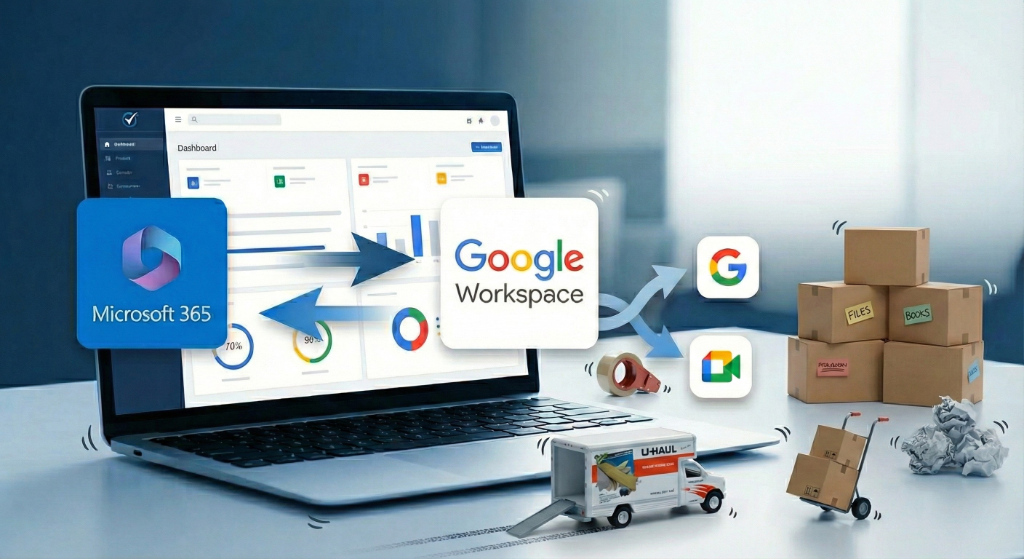
Migrating a business to Google Workspace means moving your email, files, calendars, and contacts off your old system and onto Google, ideally with no downtime. The work happens in three stages: audit what you have, build and secure the new environment, then copy the data and cut over. Done in the right order, your team keeps working the whole time.
The decision to migrate your business to Google Workspace usually isn't sparked by a single moment. It is often a gradual realization. Maybe you are tired of waiting on hold for Microsoft support that never seems to solve the actual problem. Perhaps you and your staff have used Gmail personally for decades, and the "corporate" tools you are currently using feel clunky and unintuitive by comparison. Or you simply realized that your clients are constantly trying to share Google Drive links with you, and you want to make that collaboration easy rather than a headache.
Whatever the specific catalyst, the goal is the same: you want a system that works the way you think, without the friction.
However, knowing you want to make the move doesn't make the process any less intimidating.
For business owners, "migration" represents a significant risk. You are worried that a single technical misstep could cause years of client emails, contracts, and financial records to vanish into the digital ether. This fear is valid. You are an expert in your field, whether that is finance, consulting, or logistics, but you are likely not an email & data migration specialist.
This guide is designed to dismantle that complexity. We are going to examine what a secure migration actually looks like today, why "winging it" is a dangerous gamble for any business, and the actionable steps you can take to ensure your data arrives safely.
What is a "Migration" Anyway?
Let's strip away the jargon.
Think of migration as moving houses.
You are leaving your current residence. This might be a cramped rental where the utilities don't work right (like a basic GoDaddy or Yahoo email via IMAP migration), a massive corporate high-rise where you hate the management (Microsoft 365 to Google migration), or maybe you are merging two separate households together under one roof (a Google-to-Google tenant migration).
Regardless of where you are coming from, the job is to pack up your entire life and move it to your new custom-built estate: Google Workspace.
But this isn't just about handing over the keys. You have to move all your "stuff":
- The Furniture: This is your heavy lifting, years of email archives, large folder structures, and critical documents.
- The Tools: These are the functional items you need to operate daily, such as your calendar appointments and schedules.
- The Odds and Ends: These are the critical little things tucked away in the drawers, like your contact list and address books.
Getting these items safely to their new destination requires more than just a drag-and-drop. It requires a strategic plan. If you try to move everything at once without preparation, you risk leaving critical client history behind or locking your team out of the tools they need to function. To prevent that chaos, here at NeuGenity, we break the migration down into distinct phases. This is the exact framework we use to ensure business continuity.
The Safety Net: Why We Copy Instead of Move
Before we move into the steps, I want to touch on Email Migration Failures.
In my experience, most migrations that feel like "failures" aren't actually about lost data. They are about broken habits.
Take Google Drive shortcuts, for instance. A user might spend years creating shortcuts to access files quickly across different folders. When we migrate to the new account, those shortcuts, the digital breadcrumbs, do not copy over. The user logs in, sees an empty folder where a shortcut used to be, and immediately assumes the file was deleted. It wasn't. The map just changed. They simply need to search the new drive for the file using its original file name to find it.
This is where the "moving a house" analogy needs a slight adjustment.
When you move houses, you physically pick up your couch and take it with you. If it falls off the truck, it's gone. In a data migration with NeuGenity, we don't move your files; we copy them. We create a digital twin in the new location while leaving the original exactly where it was. This provides the ultimate safety net: if we do happen to miss a specific file, we haven't lost anything. We simply look back at the old system, find the missing item, and copy it over again.
Having a safety net is not an excuse for flying blind. We can only copy what we know exists. If a critical file is hidden on an old hard drive and we don't know about it, we can't create that digital twin. That is why the process starts with a map.
Step 1: The Audit (Know What You Have)
Before you cancel your old service or buy a single Google license, you need to take inventory. I call this the "Digital Walkthrough." Sit down and list every single place your business data currently lives. Do not just count the main email address; you need to dig deeper into the hidden corners of your operations.
Ask yourself these four questions to catch the data most business owners miss:
- Where is the data hiding? Do you have a generic "info@" address that forwards to an inbox you rarely check? Do you have an administrative assistant who has been saving important PDFs to their local hard drive instead of the server?
- What is your "VIP" data? Which specific files would cause your business to shut down if you lost them?
- Do you have the keys? Do you actually have the login for your domain host? You would be surprised how many business owners lost this password years ago.
- Who holds the access? Map your users clearly. Does your part-time contractor really need access to the financial folders?
Wait, I'm Already on Google. Is My Migration Easier?
Many of you reading this might already be using a personal Gmail for business or an older Google Workspace account and just want to "clean it up" by moving to a new one. You assume that staying in the Google ecosystem means everything stays exactly the same.
It doesn't.
Google-to-Google migrations have specific "traps" that often catch business owners off guard. Learn more about our Google Workspace tenant-to-tenant migration services. Here are some of the realities you need to know before you start:
1. The "Ghost" Meeting Phenomenon
You may assume your calendar will shift over seamlessly, but there is a catch with recurring events. While your calendar events transfer, any recurring meetings you organized, internal staff syncs, or recurring client appointments will technically be "copies" of the original invitation. This means if you update the invite later, your attendees won't see the changes. To fix this and regain control, you effectively have to recreate these meetings so you own the "live" version again.
2. Why Your Old Bookmarks Are Ticking Time Bombs
If you use bookmarks in your browser to easily access files, be very careful immediately after the move. When you bring over your bookmarks, they will appear normal, but they are actually pointing back to the files in your old account. These links contain the old Google Drive address, not the new one. If you keep using them, you are editing data in a "dead" account that will eventually be deleted. You have to be disciplined about searching for the files in the new Drive and creating fresh shortcuts to ensure you are working on the live data.
3. The Temporary Identity Shift
If you are merging two Google Workspace accounts together, then during the actual cutover window, that brief period when we are moving the domain itself, your email address is going to change. It is a necessary technical step where user@company.com temporarily becomes something like user@tempcompany.com. You may notice this change wherever you are signed in to Google using your business account.
4. The Broken Data Chain (Forms & Sheets)
If your business relies on Google Forms for client intake or surveys, the forms themselves will move with you, as well as the answer file, but the connection to the data will break. The Google Sheet that collects the answers will not automatically stay linked to the Form. You will have to manually reconnect the form to the answer file in your new My Drive immediately after migration. You will then need to reshare the new Google Forms link to your clients, vendors, etc. If you do not perform this task, clients may use your old links and submit forms and answers to the old, unmanaged file.
5. Your Inbox Will Have Amnesia (Unless You Prep)
Here is the good news: Your historical emails will transfer over with their folder structure and labels intact, so your past is organized. The bad news? Your email rules and filters do not transfer. This means that from the moment you go live, every new email will land directly in your main inbox, completely unsorted. To prevent this clutter, you must export your filters from your old settings before the migration and import them into the new account as soon as you have access.
💡 Pro Tip: Not sure how filters work or how to set them up? Check out our complete guide: Gmail Filters Explained: Automatically Sort, Label, and Prioritize Emails
Step 2: The Technical Foundation (The "Plumbing")
This is the part that usually scares people, but it is the most critical.
You need to tell the internet that your new Google Workspace account is the legitimate sender for your business. This involves updating your DNS records. Think of DNS as the address book of the internet.
You need to add three specific text records to your domain settings. I won't bore you with the engineering manual, but I will give you the translation. These three act as a security team for your domain:
SPF (The Guest List)
Think of this as the strict clipboard in a security guard's hand. It is a list of exactly which IP addresses are allowed to send email on your behalf. If an email tries to enter a client's inbox claiming to be from you, but the server isn't on the list, it gets flagged immediately.
DKIM (The Wax Seal)
This is the digital equivalent of a wax seal on a royal letter. It attaches an encrypted signature to your email that proves the message hasn't been opened or tampered with in transit. If the seal is broken upon arrival, the recipient knows it's a fake.
DMARC (The Bouncer)
This is the instruction manual for the other side. It acts as the bouncer, deciding who gets in and who gets kicked out. It tells the receiving server exactly what to do if an email fails the Guest List check (SPF) or has a broken Wax Seal (DKIM). Usually, it's "reject it at the door."
Why This Is Non-Negotiable
This isn't just a "nice to have" anymore. The "Big 4" email providers (Microsoft, Google, Yahoo, and Apple) have all tightened their gates. They now require these configurations to be present and correct. If you skip this step, you aren't just risking security; you are guaranteeing that your messages will be ignored. Without these three records, your shiny new professional emails have a significantly higher chance of going straight to spam.
The good news? If you work with a Migration Specialist like NeuGenity, you do not have to worry about this. We consider this a standard part of the migration process. We handle the complex DNS configuration and security authentication for you, ensuring that when you go live, your emails are not just delivered, but trusted.
Want a printable planning guide?
Download NeuGenity's free Google Workspace Migration Checklist, used across 30-plus completed migrations.
Download Free ChecklistStep 3: The Data Transfer and "The Switch"
Once the foundation is laid, the actual migration begins.
Google has made significant strides in this area. They are constantly adding new migration sources to their native tools, and their support for moving from Microsoft to Google has come a long way in recent years. If you are the DIY type, the process might look deceptively simple on the surface. You browse to Data > Data Import & Export > Data Migration (New) in the admin console. From there, you select your migration source, authorize access, fill out a mapping CSV file, and click migrate.
It sounds straightforward. And technically, it can be done.
However, there is a massive gap between "starting" a migration and "finishing" one successfully.
First, there are hard limitations. While the tool handles email well, it cannot migrate Google Drive data to another Google Drive account, for example, merging two businesses; the native tool cannot perform that task. You will need specialized third-party software or complex workarounds to move that file structure without losing data integrity.
Second, there is the factor of time. For large amounts of data, the transfer can be painfully slow. If you have ten years of email history, do not expect it to transfer in an hour. It might take a few days.
Third, there is the distinction between data and service. You can successfully copy all your old emails, but if you aren't intimately familiar with DNS records, your email service may not work. It is entirely possible to have a full inbox of history, but a broken connection that prevents any new mail from arriving.
While you can perform this task yourself using the built-in Google migration CSV method, it is essential to know what the tool does and doesn't do. The good news is that for most Google migrations, the tool handles the basics well and successfully brings over your labels and folder structures. However, it is not magic. It cannot account for the specific "traps" we discussed earlier, such as broken Drive shortcuts, ghosted recurring meetings, or missing email filters. Furthermore, depending on which specific email service you are leaving, there may be other unique hurdles not mentioned here that a standard automated import simply won't catch.
The "Second Set of Eyes": Why DIY Needs a Review
If you do decide to tackle this migration using the Google migration tool yourself, I salute your effort. It is a valid path for many lean businesses. However, moving your data is only half the battle.
A successful data transfer does not equal a secure environment.
The migration tool is designed to move content, not to configure security policies. It will not automatically turn on Two-Factor Authentication (2FA), it will not configure your SPF/DKIM records to prevent spam, and it certainly won't lock down your external file sharing settings. Remember: "Default settings are built for convenience, not security."
If you have already moved your data or plan to do so yourself, it is highly recommended that you have the newly migrated account reviewed by a professional. A security audit ensures that while your front door is open for business, your back door isn't left wide open for hackers.
Security Audit Recommended: Check out our Google Workspace Security Audit page to see what a professional configuration looks like.
Conclusion
Moving to Google Workspace is one of the best operational decisions you can make for your business. It gives you the power to collaborate and the professional polish that builds trust with clients.
But the process matters.
You don't have to navigate this technical maze alone. If you are ready to upgrade your business but dread the thought of handling DNS records and data transfers yourself, we can handle the heavy lifting.
If this sounds like your current situation and you want to prevent these scenarios from becoming your reality, feel free to schedule a call here to explore your specific setup.
Frequently Asked Questions
Answered by Christopher Samuels · Google Workspace Certified Administrator · NeuGenity
It depends heavily on how much data you have. A brand new startup with almost no history can migrate in a few hours. However, an established firm with 10 years of client correspondence and large attachments could take several days for the data to fully sync. The good news is that with the right setup, you can keep working while the transfer happens in the background.
If planned correctly, no. There is a specific method where we "copy" the mail rather than "cut and paste" it. Your old emails stay in the old account until we confirm they have arrived safely in the new one. We verify everything before the old account is ever shut down.
No, it is not. This is a common misconception. Buying the license makes you capable of compliance, but you must sign the necessary agreements (such as a BAA) with Google and, more importantly, configure the settings correctly. If your settings allow users to share sensitive files with personal Gmail accounts, you are likely not compliant with industry regulations.
You can, but it is risky for a business. Forwarding often breaks the security authentication protocols we discussed (SPF/DKIM), increasing the likelihood that your replies will go to spam. Plus, it leaves your data scattered across multiple personal accounts that you don't legally own or control.
Need Help with Your Migration?
Our migration services include zero-downtime transitions, complete data transfer, and 2 weeks of post-migration support starting at $100 per mailbox.
Related Services
Microsoft 365 to Google Workspace Migration
Professional migration services from Microsoft 365/Office 365 with zero downtime guarantee.
MIGRATION SERVICEGoogle to Google Workspace Migration
Tenant-to-tenant migration for mergers, acquisitions, and domain consolidation.
MIGRATION SERVICEIMAP to Google Workspace Migration
Migrate from GoDaddy, cPanel, Rackspace, or any IMAP email provider to Google Workspace.
MIGRATION HUBAll Migration Services
View our complete migration offerings, pricing, and use our migration cost calculator.
Related Articles
Microsoft 365 to Google Workspace Migration
Complete guide to migrating from Microsoft 365/Office 365 to Google Workspace with zero downtime.
MIGRATIONGoogle to Google Workspace Migration
Tenant-to-tenant migration services for mergers, acquisitions, and domain consolidation.
INFORMATIONGoogle Removes Centralized Inbox Features: The End of Gmailify and POP Fetching
Google is ending POP fetching support for Gmail in Jan 2026. Learn how to protect your business email before it's too late.
SECURITYWhy Your "Secure" Business Is Wide Open
Discover why using personal Gmail for business creates security vulnerabilities and compliance risks.